
Manage your Google Chat connection
Use the Google Chat panel to check your workspace’s connection and manage an installed credential. Changes in this panel apply immediately.
Before you begin
Section titled “Before you begin”You need access to Settings → Channels. This guide covers managing a connection after the Google Cloud Chat app and its service account have been prepared.
If Google Chat has not been set up, ask your workspace administrator or the Lifter team to help prepare the Google Cloud configuration.
Check the connection
Section titled “Check the connection”- Open Settings, then Channels.
- Find the Google Chat panel.
- Read its status:
- Active: the channel is running.
- Disabled: a credential is installed, but the channel is switched off.
- Not configured: no credential is installed through this panel.
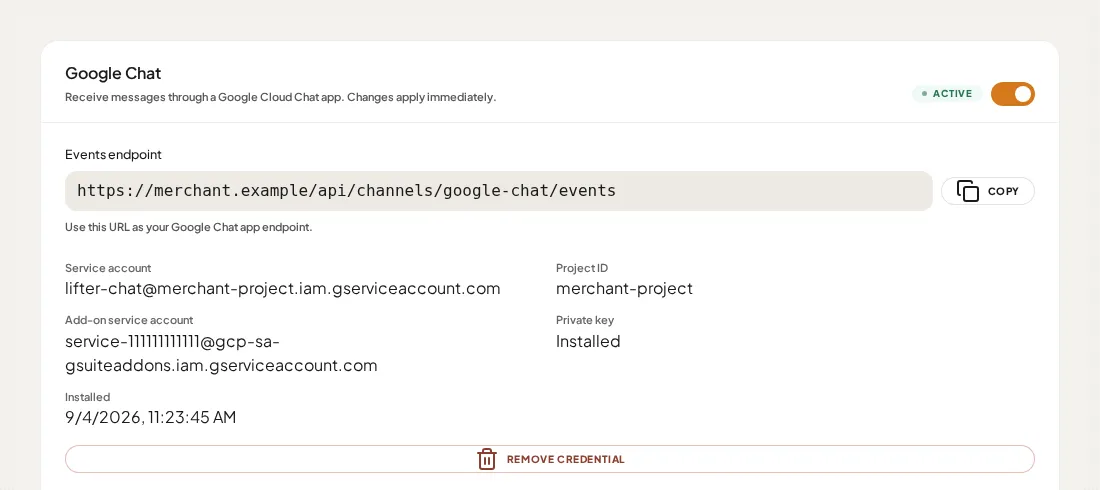
Example connection with demonstration account details.
An Active status confirms the channel is running in Lifter. To check the complete connection, send a message through your configured Google Chat app and confirm the expected response arrives.
Copy the events endpoint
Section titled “Copy the events endpoint”Select Copy beside Events endpoint. Use the URL shown in your own workspace when configuring the Google Chat app; the example address in the screenshot is not a live endpoint.
Pause and resume Google Chat
Section titled “Pause and resume Google Chat”Use Enable Google Chat to switch the connection off or on. Disabling keeps the installed credential so you can enable the connection again.
After enabling, check for Active and send a test message through Google Chat.
Replace or remove a credential
Section titled “Replace or remove a credential”To replace a credential, enter the complete replacement service account JSON and the add-on service account email, then select Replace credential. Lifter does not display the stored private key again.
Remove credential asks you to confirm. Removing it takes Google Chat offline for everyone in the workspace until a new credential is installed. You will need a fresh key from Google Cloud to restore the connection.
If credential management is unavailable
Section titled “If credential management is unavailable”If the panel says Credential management is unavailable, your instance operator must manage the credentials. An existing connection can still be active; use the displayed status to check.