Create a Facebook (Meta) app for Lifter
Create your own Meta app if your brand wants to own the app that connects its Facebook and Instagram advertising accounts to Lifter. Your ad accounts stay with your business; you do not need to move them into Lifter’s business portfolio.
This guide covers app creation for Meta’s direct Ads MCP server. You will create the app, then work with the Lifter team to configure and test the connection.
Before you begin
Section titled “Before you begin”Have these ready:
- Your Facebook sign-in and a Meta for Developers account. Complete Meta’s developer registration if prompted.
- Access to your brand’s Meta business portfolio and permission to manage its apps.
- Access to the ad accounts you want to connect.
- A monitored contact email, such as your team’s shared administration address.
- Confirmation from the Lifter team that direct Meta Ads MCP is available for your workspace, plus the callback URL to use when configuring sign-in.
A callback URL is the address Meta sends you back to after sign-in. It must match the connection Lifter configures for you.
1. Enter the app details
Section titled “1. Enter the app details”- Open My Apps in Meta for Developers.
- Select Create App. If an introduction to Meta’s new creation system appears, select Create app to continue.
- Enter an App name, such as
Your Brand — Lifter. - Enter your App contact email, then select Next.
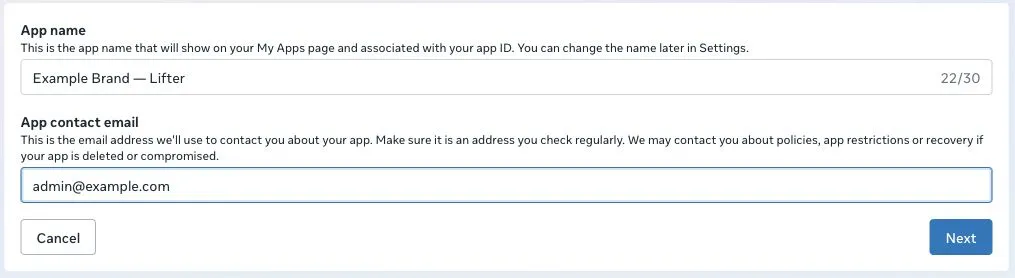
The name and email shown are examples. Use your own brand name and an address your team checks.
2. Choose the Ads MCP use case
Section titled “2. Choose the Ads MCP use case”- On Add use cases, select Ads and monetization.
- Select Create & manage ads with ads MCP server.
- Select Next.
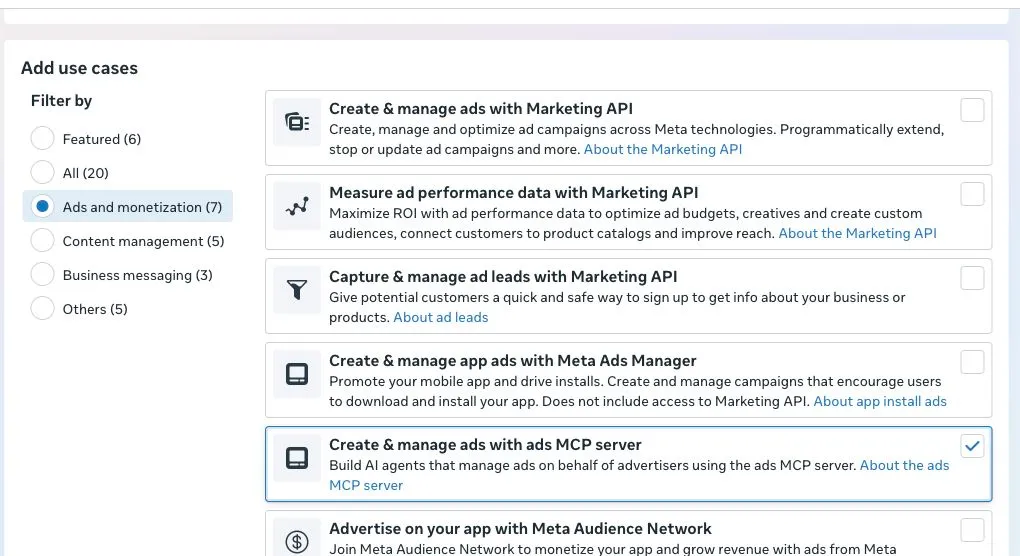
Choose the option ending in ads MCP server. The nearby Marketing API and Meta Ads Manager options are different use cases.
3. Choose your business portfolio
Section titled “3. Choose your business portfolio”- On Which business portfolio do you want to connect to this app?, select your brand’s business portfolio.
- Select Next.
For example, a brand setting up its own app should select that brand’s portfolio, even when Lifter is helping with setup. Creating the app does not move or change your advertising accounts.
If your portfolio is missing, check that you are signed in with the correct Facebook account and ask the portfolio administrator to check your access. Meta also offers Create a business portfolio if your business does not have one yet.
The option I don’t want to connect a business portfolio yet postpones this step. It does not give the app access to your business or its ad accounts.
4. Review the requirements
Section titled “4. Review the requirements”Read Publishing requirements, then select Next. Follow the requirements Meta shows for your app and intended use.
If Meta shows No requirements identified, continue to the next step. This message at app creation does not mean that Meta has approved access to other businesses’ data.
5. Review and create the app
Section titled “5. Review and create the app”- On Overview, check the app name, contact email and Ads MCP use case.
- Check that Business shows your intended portfolio.
- Select Create app. If Meta asks for your Facebook password or a security check, complete it directly on Meta’s page.
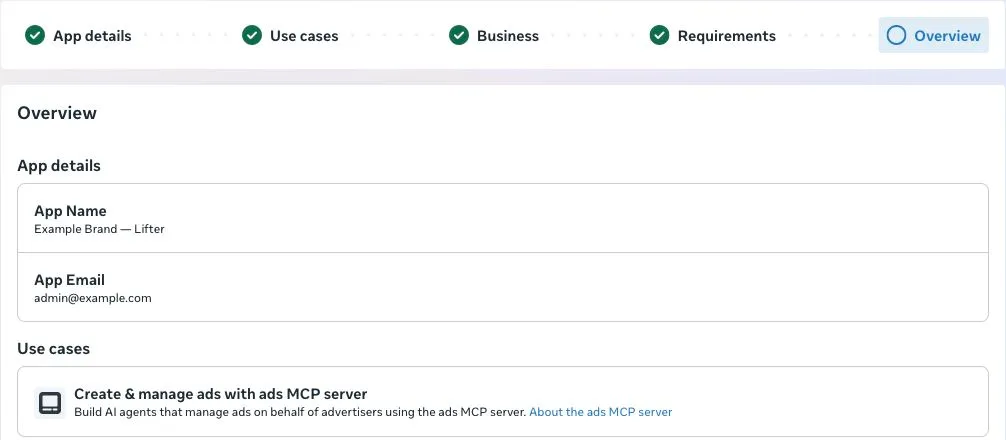
After creation, confirm that the app appears in My Apps and open its dashboard.
6. Fill in the basic settings
Section titled “6. Fill in the basic settings”Open App settings → Basic. For an app used to connect your brand to Lifter, use these Lifter service details.
Policy links to copy
Section titled “Policy links to copy”Privacy policy URL
https://lifter.work/legal/privacyTerms of Service URL
https://lifter.work/legal/termsUnder User data deletion, choose Data deletion instructions URL and enter:
https://docs.lifter.work/configuration/meta-data-deletion/Read the deletion instructions. This is an instructions page, not an automated deletion callback. Check that each public URL opens before saving it in Meta. The deletion page must be published before its URL can be used.
These policies describe Lifter’s service. If you also use the app for another service or collect data outside Lifter, use policy information that covers that additional use.
Other suggested values
Section titled “Other suggested values”| Meta field | What to enter |
|---|---|
| Display name | Your Brand — Lifter, replacing Your Brand with your business name. |
| Contact email | A monitored address at your business. Meta sends app and security notices here; keep these with your team. |
| App domains | lifter.work for a workspace hosted under lifter.work. If you use a custom domain, ask the Lifter team for the domain to add. Enter the domain without https:// or a path. |
| Category | Business and pages, if Meta offers this category. |
| App icon | Download the Lifter app icon (PNG), or use your brand’s square logo. |
| Namespace | Leave blank unless your connection instructions specifically require one. |
| Website URL, if requested | https://lifter.work/ for the Lifter service. This is different from the sign-in callback URL. |

If Meta asks for a short description of the app, you can use:
Connects our business’s Meta advertising accounts to Lifter so authorised team members can review advertising performance and manage campaigns through their AI specialist.
Keep Business portfolio, business-verification details and any data-protection contact details specific to your own business. The app remains yours; copying Lifter’s service links does not change its ownership.
Select Save Changes when you have finished.
7. Give Lifter the app details
Section titled “7. Give Lifter the app details”- In the new app, open App settings → Basic.
- Copy the App ID and send it to the Lifter team, along with the app name and the ad account you want to connect.
- If the team requests the App secret, use the secure credential-sharing method they provide. Do not paste it into a conversation, email or screenshot. Your Facebook password is never needed by Lifter.
The App ID identifies the app. The App secret is a credential. An access token is a separate credential created during sign-in; it is not a replacement for the App secret.
8. Finish the connection with Lifter
Section titled “8. Finish the connection with Lifter”The Lifter team will help you complete the app’s login settings and install its credentials. Creating an app alone does not connect it to your workspace.
- Confirm that the Facebook user who will connect has access to the intended advertising accounts. For an internal test, that person also needs an appropriate role on the Meta app. App access and ad-account access are separate.
- Open the app’s Use cases and customise Create & manage ads with ads MCP server. Review its Permissions and features with the Lifter team.
- In Facebook Login for Business settings, register the exact callback URL supplied for your connection. Meta’s Ads MCP setup instructions describe this authentication flow.
- Once the team confirms configuration is ready, use the connection flow they provide. Sign in with the intended Facebook account and review the access requested.
Which permissions does direct Ads MCP need?
| Permission | What it allows |
|---|---|
ads_mcp_management |
Use Meta’s Ads MCP server. |
ads_read |
Read advertising information for reporting. |
ads_management |
Read and manage advertising information. |
Meta requires ads_mcp_management plus at least one of ads_read or ads_management. Additional permissions depend on the features being connected. The Lifter team should request only those needed for your setup.
What if my connection uses Composio?
Tell the Lifter team before configuring the app. Composio’s Meta Ads tools and Meta’s direct Ads MCP server use different connection setups; this walkthrough follows the direct MCP path.
Composio provides a Facebook app creation guide and custom credential instructions. Its current callback is https://backend.composio.dev/api/v3/toolkits/auth/callback; some configurations still use the supported https://backend.composio.dev/api/v1/auth-apps/add address.
Use the exact oauth_redirect_uri from the auth configuration your administrator is preparing. Do not replace a working callback just because another guide shows a newer address, or use a Composio callback for a direct Lifter connection. Your administrator handles the Composio configuration; you do not need to create a separate Composio account to follow this guide.
Check the result
Section titled “Check the result”Once connected, ask your specialist:
List the ad accounts I can access. Do not change anything.
Check that the intended account appears. Then ask for a small performance report, for example:
Show last week’s campaign spend for [your ad account]. Do not change any campaigns or budgets.
Compare the account and reporting period with Ads Manager. If the check fails or the wrong account appears, resolve that with the Lifter team before requesting advertising changes.
If something goes wrong
Section titled “If something goes wrong”| What you see | What to do |
|---|---|
| Your business portfolio is missing | Check the signed-in Facebook account and ask the portfolio administrator to check your app-management access. |
| The MCP use case is missing | Select Ads and monetization, rather than only Featured. For an existing app, check Use cases → Add use cases. Older dashboards can differ. |
| “Feature Unavailable” during sign-in | Ask the Lifter team to check the app’s login settings, required actions and permission access levels. For an internal test, check the connecting person’s app role too. The message alone does not identify the cause. |
| The owner can connect, but a colleague cannot | Check the colleague’s app role and ad-account access. If they are an external user, check whether the app needs advanced access and review. |
| Request advanced access is disabled | Read the permission’s requirements and the button’s explanation. If Meta asks for a successful test API call, ask your administrator to run one using this app. Meta says the button can take up to 24 hours to activate afterward. |
| An OAuth redirect error appears | Compare Meta’s registered callback with the exact URL supplied for this connection. Check the full address, including its path and any trailing slash. |
| Sign-in succeeds but accounts are missing | Check the signed-in user’s access to the intended ad accounts and whether Ads MCP is available for those accounts. |
| MCP tools fail after sign-in | Ask the Lifter team to check the granted permissions, including ads_mcp_management, and the connection’s token and login configuration. |
For Meta’s current requirements, see its Ads MCP setup guide and business verification guidance.